

You can connect your Planfy account with your Microsoft Outlook account to automatically sync appointments between the two platforms.
To set up calendar synchronization, go to the Staff page and select the team member whose calendar you want to sync. Open the Integrations tab.
How to synchronise bookings between Planfy & Outlook Calendar
Click Setup Sync under the Microsoft Outlook Integration section.
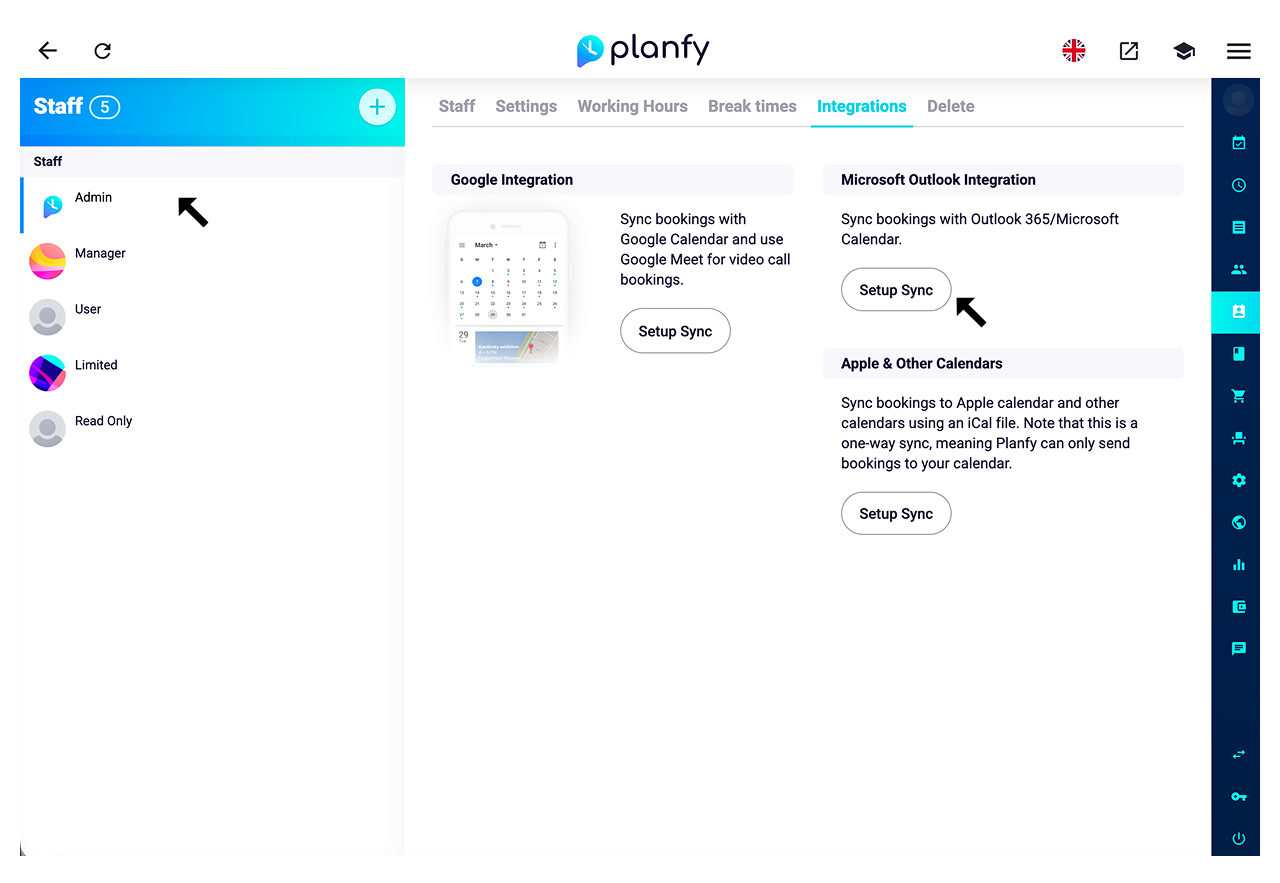
Enter the staff email address and click Send. You will receive a setup email, click the Sync button in the email and complete the setup process.
Your bookings are now synced between Planfy and your Outlook calendar with two-way synchronization. Any new booking, update, or cancellation made in either Planfy or Outlook will automatically be reflected in both calendars.
How to synchronise bookings between Planfy & Apple/orther Calendars
Click Setup Sync under the Apple & other calendars section.
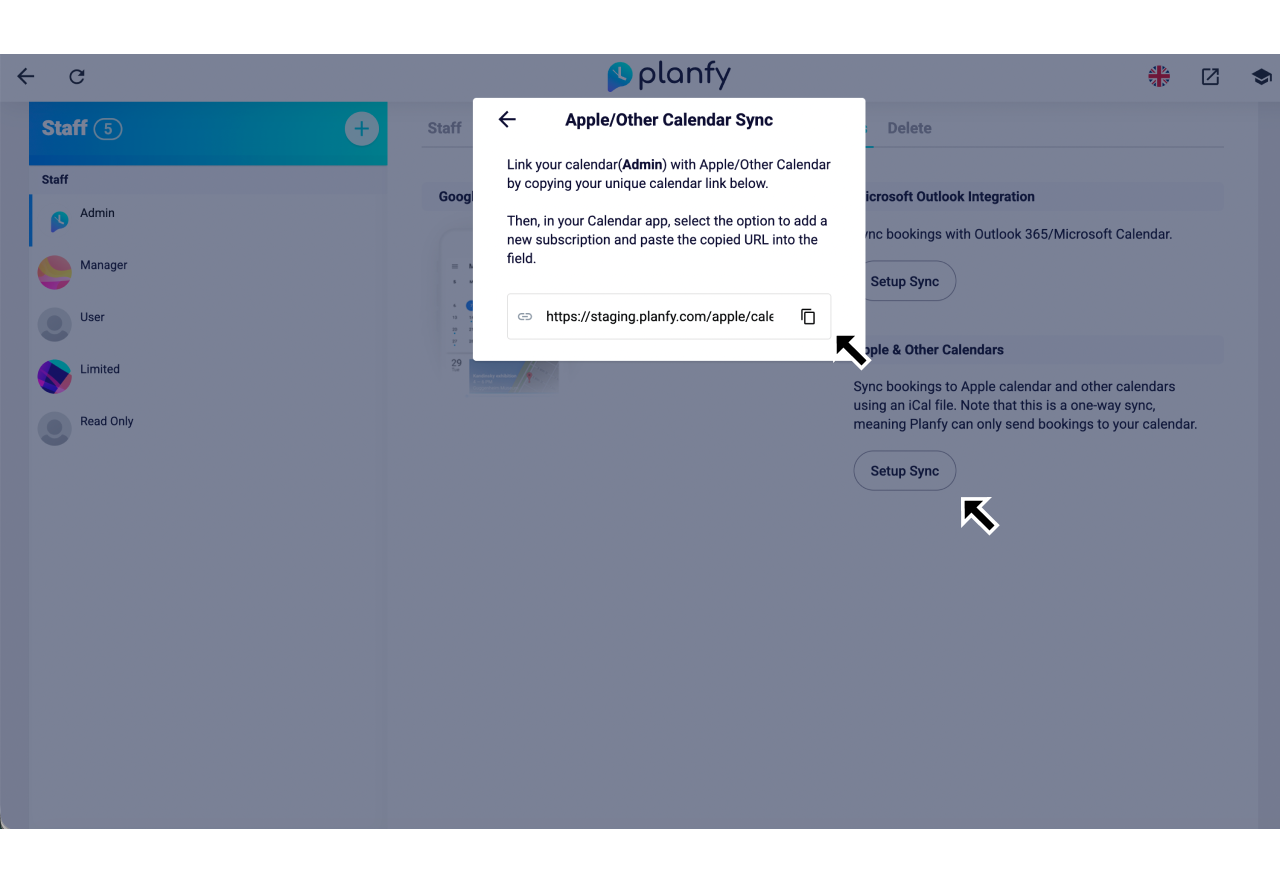
This will generate a URL for your Planfy calendar. Copy the URL and add it as a new calendar subscription in your calendar app.
On iPhone or iPad: Open the Calendar app -> Add Calendar -> Add Subscription Calendar.
On Mac: Open the Calendar app -> select File -> New Calendar Subscription.
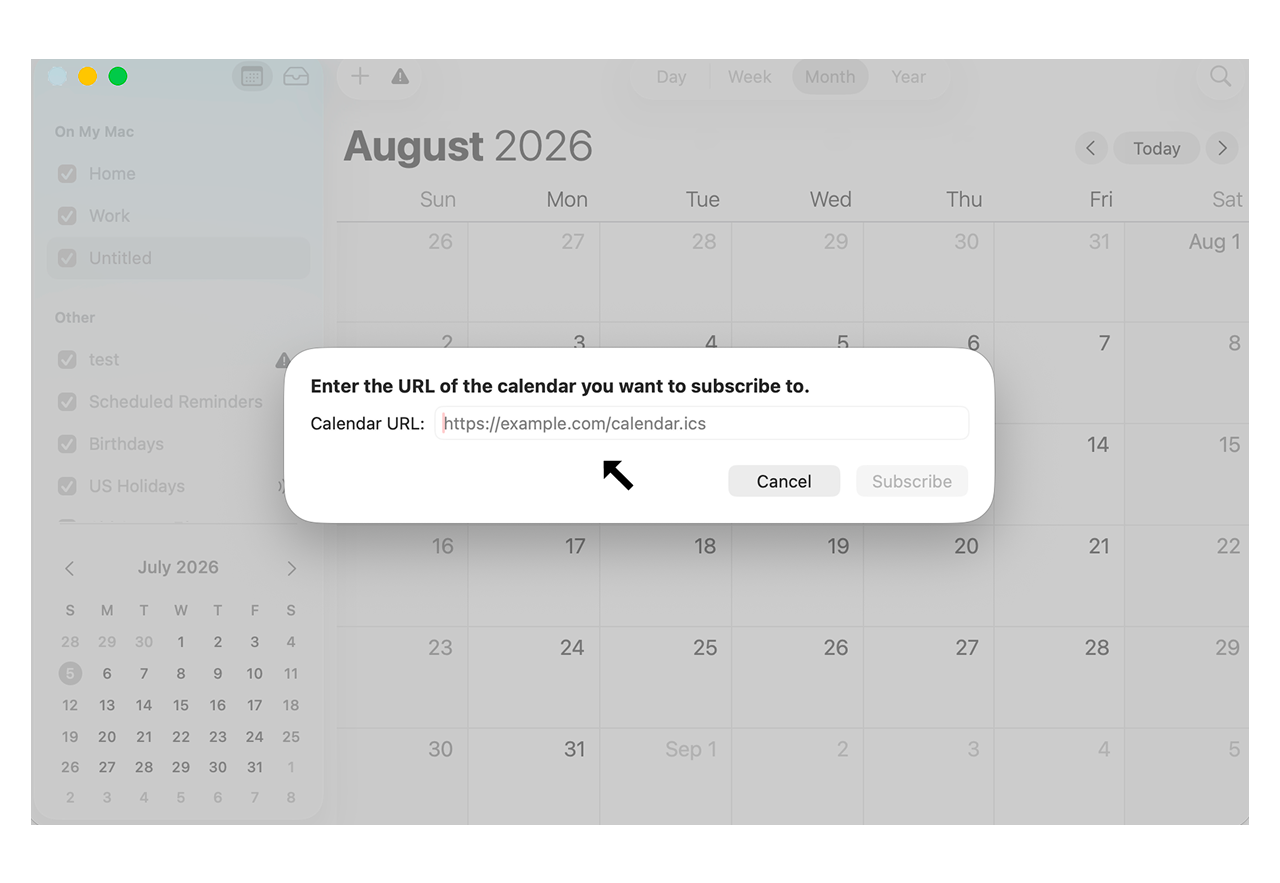
This one-way sync will automatically reflect bookings from your Planfy account.
You can refer to this guide to learn how to sync the staff calendar with Apple or orther Calendars.